muOS or Knulli: installing a system on your console
 By The Yeti · published 15/11/2026 · 3 min read
Your Linux consoles with the H700 chip run very well on their original system. But many players install an alternative, more complete system: muOS or Knulli. Both are free, support most consoles with the H700 chip and install on a second microSD card, without touching the original card. You go back by simply swapping the cards.
muOS or Knulli?
| muOS | Knulli | |
|---|---|---|
| Interface | Minimalist and very fast | Visual, with box art and videos |
| Philosophy | Fine-grained settings, emulators of your choice | Everything ready, living-room-console style |
| Boot | Very fast | A little longer |
| For whom | Those who like to tweak | Those who want a nice showcase |
Both are actively developed. If you don’t know which to choose, start with muOS: its community is the biggest, which helps when something goes wrong. You can always try the other later, on another card.
What you need
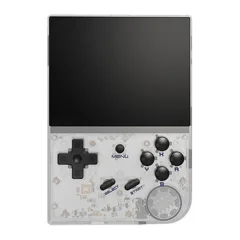
- Your console with the H700 chip: RG35XX, RG34XX, RG CubeXX or RG SP. Check that your exact model is on the list for the system you choose, on its official website.
- A new microSD card for the system, from a known brand. Unbranded cards cause black screens at boot. A 128 GB SanDisk is more than enough.
- A second card for your games, if you want to separate the system and the games (recommended).
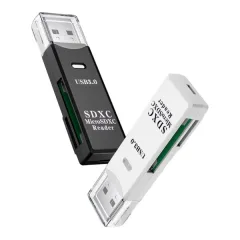
- A card reader for your computer.
- Software to write the image to the card: Rufus on Windows, or Raspberry Pi Imager on Windows, macOS and Linux.
The installation, step by step
- Download the image from the official muOS or Knulli website. Choose exactly the model of your console: an image made for another model won’t boot.
- Write the image to the system card with Rufus or Raspberry Pi Imager. Select the file, then the card. The software creates the partitions by itself: no need to format beforehand.
- Prepare the games card: format it as exFAT from your computer.
- Insert the system card in the console’s first slot, and the games card in the second.
- Turn the console on. The first boot takes a few minutes while the system installs. Don’t turn it off during that time.
- Set the date, the time and the Wi-Fi if your console has it.
On first boot, the system creates the game folders on the second card. All that’s left is to fill them: my guide Putting your games on your retro console explains how.
If it won’t boot
- Black screen: write the image again, or try another card from a known brand.
- The console doesn’t respond at all: check that the image matches your exact model.
- The games don’t appear: check that they’re in the right folder, then refresh the list in the menu.
In every case, put the original card back in the first slot: your console restarts just like on day one.
Frequently asked questions
Are muOS and Knulli free?
Yes, both of them.
Can you keep your games when switching from muOS to Knulli?
Yes, if your games are on the second card. The two systems don’t always use the same folder names: you may need to move them.
Does it work on Android consoles?
No. muOS and Knulli are made for Linux consoles. On Android, you simply install the emulators like apps.
The consoles in this guide
A question about this guide?
No questions about this guide yet. Ask yours: I answer here, publicly, to help the next readers.
Ask a question
All guides · Console Finder · All consoles