Putting your games on your retro console: the guide
 By The Yeti · published 15/11/2026 · 3 min read
Your console is on, and all that’s missing is your games. On a Linux console, they go on the microSD card, in one folder per console, copied from your computer with a card reader. On an Android console, you copy them to the internal storage or to the card, then point the emulator to the folder.
First, where do the games come from?
An emulator is legal. The games themselves are protected by copyright. The proper way to play is to copy your own cartridges and discs, with a suitable reader for cartridges or a computer’s disc drive for CDs. There are also recent games made by enthusiasts for old consoles, often free or cheap.
On a Linux console
What you need
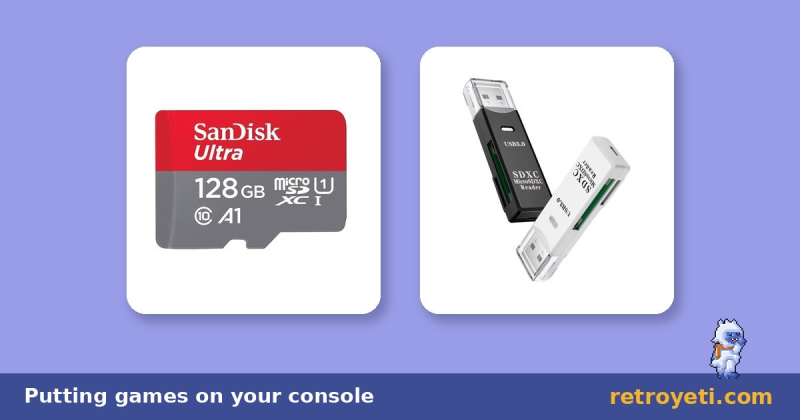
- The microSD card for your games. If you’re buying one, my microSD card guide helps you choose the capacity.
- A USB card reader for your computer.
The steps
- Turn the console off and take out the games card, in the second slot.
- Put it in the reader, plugged into your computer.
- Open the games folder. The system created it on first boot, with one subfolder per console, for example GBA for the Game Boy Advance or PS for the PlayStation.
- Copy each game into its console’s folder. A Game Boy Advance game in the GBA folder, a PlayStation game in the PS folder.
- Eject the card properly before removing it. Otherwise, you risk damaging files.
- Put the card back in the console and refresh the games list.
The exact folder names change from one system to another: muOS, Knulli and the original system don’t always use the same ones. Look at the ones already on the card. My guide muOS or Knulli explains both alternative systems.
On an Android console
Android consoles behave like a phone:
- Connect the console to your computer with a USB-C cable that can transfer data, or copy your games to a microSD card with a card reader.
- Create one folder per console, for example “Games/PS2”, “Games/PSP”.
- Copy your games, then unplug the console.
- In each emulator, point to the folder of its games. RetroArch can scan a whole folder in one go.
The BIOS: the case of a few consoles
Some consoles need their internal software, the BIOS, to be emulated: the PlayStation, the PS2, the Mega-CD or the Neo Geo, for example. It goes in a BIOS folder, whose name depends on the system or the emulator. The BIOS is protected as well: the proper way is to extract it from your own console.
File formats
- Cartridges (NES, Super Nintendo, Game Boy, Mega Drive…): a single small file per game.
- CDs (PlayStation, Mega-CD…): go for the compressed CHD format, which is lighter. For multi-disc games, an .m3u file lists the discs, as I explain in my PS1 games guide.
- DVDs (PS2): several gigabytes per game, CHD also saves a lot of space.
Frequently asked questions
Do I need to format the games card?
Only if it’s new or if the system asks for it. exFAT is the most common format on retro consoles.
My games don’t show up, why?
Most often, they’re in the wrong folder, or the list hasn’t been refreshed. Also check that the file format is supported by the emulator.
Can you copy games over Wi-Fi?
On some consoles and systems, yes, but it’s slower and more temperamental. The card reader remains the simplest.
The consoles in this guide
A question about this guide?
No questions about this guide yet. Ask yours: I answer here, publicly, to help the next readers.
Ask a question
All guides · Console Finder · All consoles